Showing posts with label soundtrack. Show all posts

Tuesday, March 12, 2013

Adding an Audio Voice Over with WavePad

audio mixing If you want to record a your voice over a piece of music you have two choices in the NCH Software audio suite. MixPad recording and mixing software is the more advanced program, that will allow you to record multiple tracks, and fine tune the mixing of the music and vocal tracks, but you can also try the Paste Mix feature in WavePad audio editor for quickly combining to files.

WavePad doesn't allow you to record directly over another file, highlighting a file and clicking record will end up replacing the selection. Instead, use the Paste Mix feature to combine two audio files into a single track.

Copy the recorded voice over to the clipboard, then select all in the audio file you want to add that voice over to and click Paste Mix on the Edit Tab.This will open a window with options on what to do if your files are not the same length. If the Mix Audio�which is your voice recording on the clipboard�is the shorter of the two files, you can ignore the options and click OK. If the Mix Audio is longer, you need to decide what to do when the audio you are mixing into is finished. When you click OK the two pieces of audio will be combined and when you press Play you will hear both files.

Monday, December 6, 2010

Do More with Audio - Blog Carnival December 6, 2010


Audio is everywhere you look, or listen. Add a little time a dash of creativity and you will be surprised at what you can find out there to listen to. Take for example the discovery that you can get the Google translate tool to sound like a beat box. But be warned playing around with the different language combinations will suck away a chunk of your day before you know what happened.

Here are this edition's entries to Do More with Audio:


Nils J. Sandback presents Piano Humour: A Victor Borge Tribute posted at Piano Street's Classical Piano Blog, saying, "A tribute to the Danish pianist and humorist Victor Borge."

Bart Bryars presents First Time Success Making A Music Video, saying, "This is my first video, and the opening number the musical, Joey, that my wife and I have been working on."

Gregg Fine presents Getting Started in Advertising Music-The Video Reel Pt. 1 posted at Hidden Tiger Music Blog, saying, "This blog focuses on the art and craft of making music for advertising and television commercials. Additional topics include mixing, recording, audio engineering, composing, arranging."

You might also be interested in:That concludes this edition of "Do more with audio." Be sure to Submit your audio article, story or success to the next edition.

Monday, October 25, 2010

Scary Halloween Tutorial: Make a Howling and Haunting Halloween Soundtrack

5 easy steps for making your own Halloween soundtrack

Last week we showed you how to spookify your screen saver in 3 easy steps using VideoPad. This week we'll help you prepare for that Halloween party you have planned, or for setting a spooky atmosphere for your trick-or-treaters with a haunting halloween soundtrack.

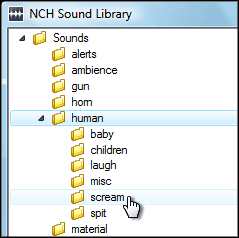
NCH Software Sound Effect Library1. Using WavePad audio editor, download three sounds from the sound effect library, found under the Tools menu. We recommend Ambience SciFi 1 for the background, and Nature Weather Lightning 3 and Human Scream 1 as accent sounds. Save them in a location you can remember. To download more than three sounds, upgrade to the WavePad Master's edition, or record more sounds of your own.

2. Open your downloaded sounds in WavePad. For the basics of using WavePad, view the WavePad tutorial series.

3. Copy your background sound and paste at the end of the file one or two times, so the length of your soundtrack becomes a few minutes long.

WavePad Audio Paste Mix 4. In this step, you are going to add your accent sounds to your background sound. Copy the entirety of one of your accent sounds, then go back to the window with your background sound. Place your cursor in a random location, then select Paste Mix from the Edit menu and click OK on the dialog that appears. The accent sound will be pasted over the background sound. Repeat this process as many times as you want for each accent sound throughout the duration of the background sound file.

5. Save your finished background file with the added accents to a format suitable for your CD player or portable device. When you play the soundtrack, make sure you loop it so the sounds play continually throughout your Halloween night.

With Christmas around the corner, you can get a head start on personalizing Christmas songs with reindeer noises, elves cheering, and bells ringing using the same steps given here. Feel free to share your creations, and we'll feature you on our blog!